
In 2026, thousands of Kenyans are switching to softcopy PDF books because they are affordable (from KSh 100), instant, and convenient to read on Android phones. Whether you’re a student, pastor, nurse, or entrepreneur, carrying an entire library in your pocket has never been easier.
At Cliffmatt Books, we make the process simple: Pay via M-Pesa, receive links instantly via WhatsApp or email, and start reading offline within minutes.
This complete guide shows you exactly how to download PDF books on Android in Kenya, the best apps to use, and troubleshooting tips.
Why Android users in Kenya love PDF books:
- Searchable text, zoom, bookmarks, and dark mode.
- No need for expensive physical books (KSh 800–4,000).
- Read anywhere — matatu, farm, church, or at night.
This guide answers all of those questions in plain, simple Swahili-friendly English. By the time you finish reading this post, you will know exactly how to:
- Buy a PDF book in Kenya using M-Pesa
- Find your book after it arrives on your email or WhatsApp
- Download and save it safely to your Android phone
- Back it up to Google Drive so you never lose it
- Read it using the best free PDF apps available in Kenya
Everything in this guide works on any Android phone sold in Kenya — including Tecno, Infinix, Samsung, iPhone, Redmi, and Nokia.
Why PDF Books Are the Smartest Way to Read in Kenya
Before we dive into the how-to, let us quickly answer why thousands of Kenyans are choosing PDF ebooks over printed books.
Price: A printed book at a Nairobi bookshop costs Ksh 1,500 to Ksh 3,500. The same book as a PDF on Cliffmatt Books costs Ksh 100. That is 10 to 30 times cheaper.
Speed: Pay via M-Pesa → get the book in your email or WhatsApp within minutes. No waiting for delivery. No going to a bookshop. No shipping cost.
Convenience: Your entire library lives on your phone. You can read on a matatu, during your lunch break, before bed, or anywhere with your phone.
No storage problem: 100 PDF books take up less storage space than a single WhatsApp video. Your phone can hold thousands of books without slowing down.
Now let us get into the step-by-step process.
Step 1: Buy Your PDF Book Using M-Pesa
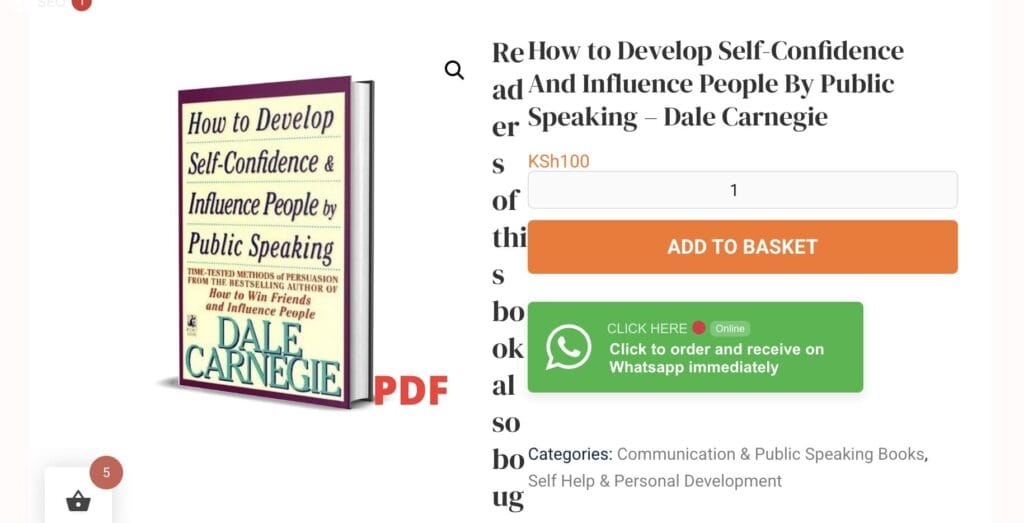
The most affordable place to buy PDF books in Kenya is Cliffmatt Books — over 1,600 titles across 22 categories, all at Ksh 100 each. Here is how the buying process works:
Buying through the website (cliffmatt.co.ke):
- Go to cliffmatt.co.ke on your Android phone browser (Chrome works best)
- Browse or search for the book you want
- Tap Add to Cart then tap Proceed to Checkout
- Enter your email address and your M-Pesa phone number
- Tap Place Order — an M-Pesa STK push will immediately appear on your phone
- Enter your M-Pesa PIN and confirm the payment
- Your PDF book is sent automatically to your email within 1–2 minutes
Important: Use an email address you can access on your phone — Gmail is recommended because it works perfectly on Android and makes saving to Google Drive easy (more on this below).
Buying through WhatsApp:
If you prefer ordering via WhatsApp, simply send a message to our Whatsapp Number, tell us the book title and authors, and make a direct M-Pesa payment to the number provided. The PDF is then sent directly to your WhatsApp chat.
Step 2: Finding Your PDF Book After Purchase
Once you pay, your book arrives in one of two places — your email or your WhatsApp. Here is how to find it on your Android phone.
If Your Book Was Sent to Your Email (Gmail)
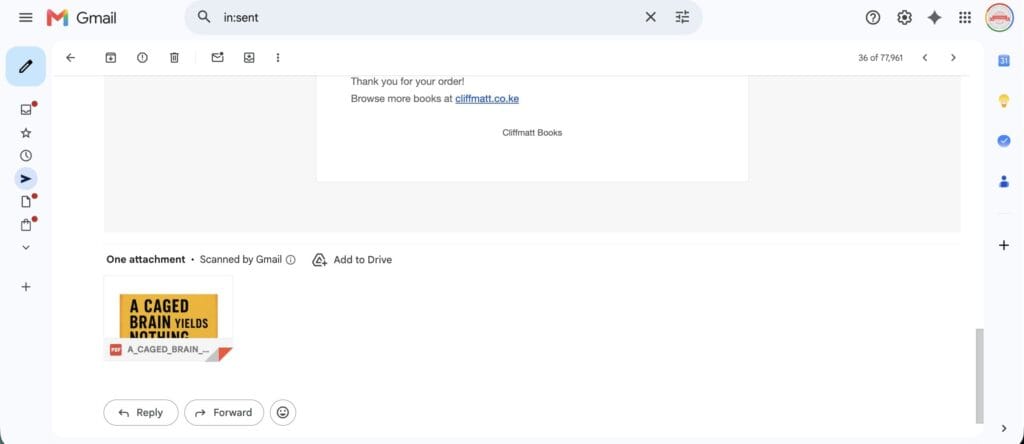
- Open the Gmail app on your Android phone
- Look for an email from Cliffmatt Books — check your Inbox first, then your Promotions folder (many order emails land in Promotions automatically)
- Open the email — you will see a PDF attachment at the bottom with the book title
- Tap the PDF attachment to preview it
- To download it to your phone, tap the download icon (downward arrow) at the top right of the preview screen
- The PDF saves to your phone’s Downloads folder
Pro tip: If you cannot find the email, search your Gmail inbox for “Cliffmatt” or the book title. Gmail’s search is very accurate.
If Your Book Was Sent on WhatsApp
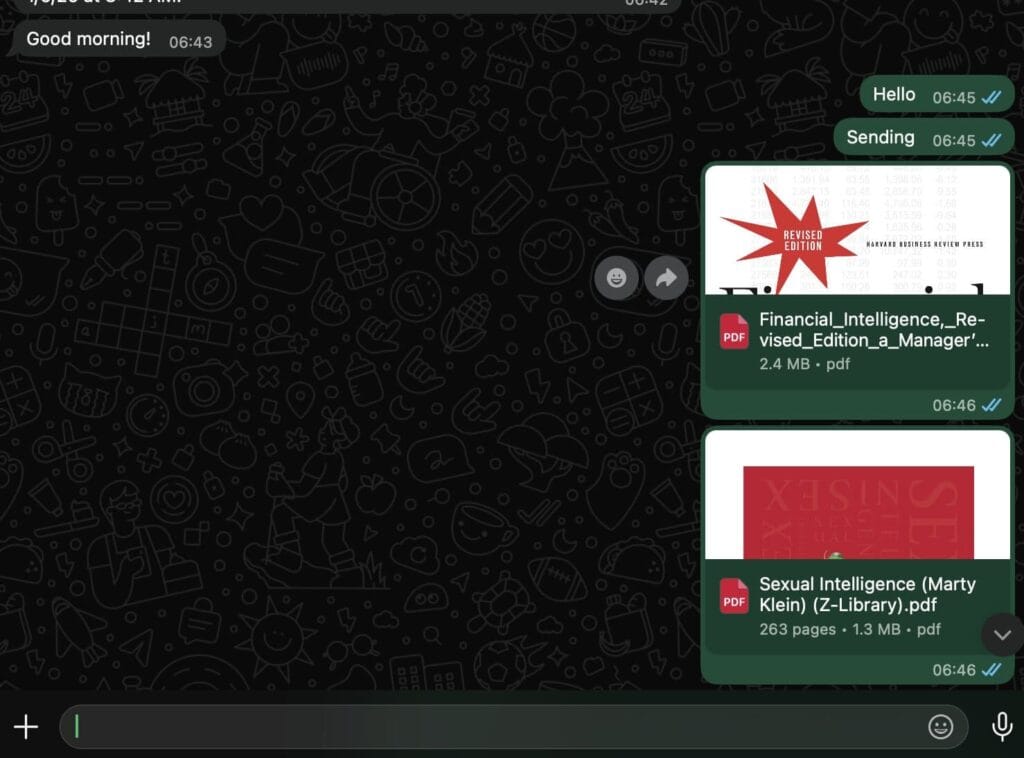
- Open WhatsApp and go to the chat where the book was sent
- You will see the PDF file listed with a book icon and the filename
- Tap the play/download button on the PDF to download it
- Once downloaded, tap the PDF to open and read it
- To save it permanently, tap the three dots (menu) at the top right → tap Save to Downloads or Share → select Save to Drive
Critical warning: WhatsApp deletes media files after a certain period if you do not back them up. This is the most common reason Kenyans lose their books — they downloaded them on WhatsApp and forgot to save elsewhere. Always save your PDF books to Google Drive or your Downloads folder immediately.
Step 3: Save Your PDF Books to Google Drive (Never Lose Them Again)
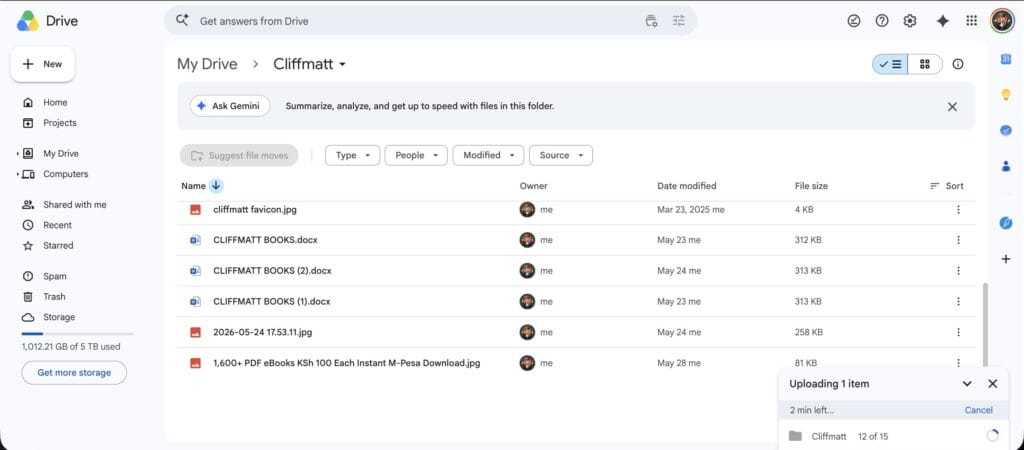
Google Drive is the safest place to store your PDF books in Kenya. Every Kenyan with a Gmail account gets 15GB of free storage — enough for hundreds of PDF books. Even if you change your phone, buy a new phone, or factory reset your device, your books are safe in Google Drive.
Here is how to save your PDF books to Google Drive directly from your Android phone:
From Gmail (email delivery):
- Open the email containing your PDF book
- Tap the PDF attachment to open it
- Tap the Save to Drive icon (the Google Drive triangle icon) that appears in the attachment preview
- Choose the folder you want to save it to (create a folder called “My Books” for organisation)
- Tap Save — the book is now in your Google Drive forever
From WhatsApp:
- Open the WhatsApp chat with your PDF book
- Tap and hold the PDF file until options appear
- Tap the Share icon (or the three dots menu)
- Select Drive or Save to Drive from the share options
- Choose your “My Books” folder and tap Save
Creating a “My Books” folder in Google Drive:
- Open the Google Drive app on your phone
- Tap the + (plus) button at the bottom right
- Select New folder
- Name it My Books (or organise by category: “Christian Books”, “Self Help”, “Nursing Books”)
- Move all your saved PDFs into this folder
Google Drive tip: Once your books are in Google Drive, you can read them directly from the Drive app without downloading them again — even on a new phone. Just open Drive, find your book, and tap to read. This also saves storage space on your phone.
Step 4: Read Your PDF Books — The Best Free Apps for Android in Kenya
Now that your books are safely downloaded, you need a good app to read them. Here are the best free PDF reader apps available on Google Play Store that work well on Kenyan Android phones — including budget phones with limited RAM.
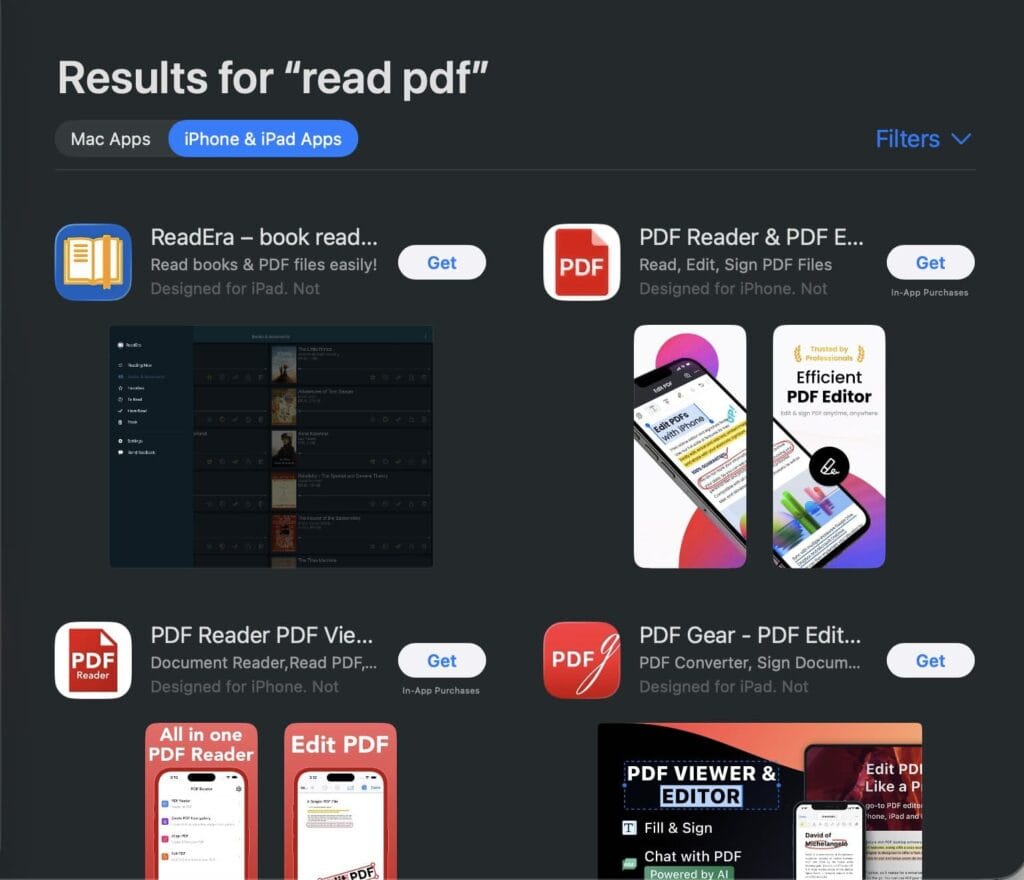
1. WPS Office — Best Overall for Kenya (Recommended)
Download: Free on Google Play Store | Size: ~30MB
WPS Office is the most popular office app in Kenya and across Africa, and for good reason. It opens PDF files instantly, has a clean interface that works smoothly on low-to-mid range phones (Tecno Spark, Infinix Hot, Samsung A series), and lets you read PDF books in both portrait and landscape mode.
Why Kenyans love it:
- Opens PDFs, Word documents, and Excel files — all in one app
- Works offline — no internet needed to read your saved books
- Night mode for reading in the dark
- Free with no annoying subscription walls
How to open your PDF in WPS Office:
- Download WPS Office from Google Play Store
- Open the app → tap Files at the bottom
- Navigate to your Downloads folder or open from Google Drive
- Tap your PDF book to open and read
2. Adobe Acrobat Reader — Most Trusted PDF App
Download: Free on Google Play Store | Size: ~60MB
Adobe Acrobat Reader is the world’s most trusted PDF app — and it works very well for reading PDF books on Android. The free version allows you to read, scroll, zoom, highlight text, and bookmark pages. It also syncs with Adobe cloud if you have an account, meaning your reading position is saved across devices.
Best for: People who want a reliable, well-known app and do not mind a slightly larger installation.
Note: Adobe occasionally prompts you to upgrade to Premium — just close these prompts. The free version is all you need for reading PDF ebooks.
3. Google PDF Viewer / Google Drive — Simplest Option
Download: Pre-installed on most Android phones in Kenya
If you saved your books to Google Drive (as recommended above), you can read them directly within the Google Drive app — no additional app download needed. Simply open Drive, find your book, and tap it. Google renders PDFs smoothly and supports pinch-to-zoom.
Best for: People who want the simplest setup with no extra apps installed.
4. Foxit PDF Reader — Best for Older/Budget Phones
Download: Free on Google Play Store | Size: ~20MB
Foxit is a lightweight PDF reader that performs exceptionally well on older or budget Android phones — the type of phone that struggles to run heavy apps. It loads PDF files quickly, uses less RAM than Adobe, and has a clean reading interface with adjustable font size and brightness.
Best for: Tecno or Infinix phones with 2GB RAM or less.
5. Moon+ Reader — Best for Heavy Readers
Download: Free on Google Play Store (Pro version available) | Size: ~15MB
Moon+ Reader is built specifically for ebook lovers. It supports PDF, EPUB, and many other formats, and offers over 10 reading themes (day, night, sepia), real page-turning animations, and reading statistics. If you read more than 3–4 books a month, Moon+ Reader gives you the most complete reading experience.
Best for: Serious readers who read books regularly and want a full ebook reading experience.
Step 5: How to Organise Your PDF Library on Your Phone
Once you start buying books regularly at Ksh 100 each, your collection grows fast. Here is a simple system to stay organised:
On Google Drive: Create folders by category:
- My Books → Christian Books
- My Books → Self Help
- My Books → Business & Finance
- My Books → Nursing & Medical
- My Books → Fiction
On your phone’s Downloads folder: Rename each PDF when you download it. Instead of a long filename like 9781234567890_ebook_v2_final.pdf, rename it to Battlefield of the Mind - Joyce Meyer.pdf. This makes finding books easy when you have hundreds saved.
In WPS Office or Moon+ Reader: Both apps have a built-in bookshelf that shows all your PDF books in one place. You do not need to go to your Downloads folder every time — just open the app and your books are listed.
Common Problems and How to Fix Them
“I paid but did not receive my book by email”
First, check your Promotions folder in Gmail — order confirmation emails often land there. Also check Spam. If the book is not in either folder after 10 minutes, message Cliffmatt Books on WhatsApp with your M-Pesa confirmation SMS. The payment reference number (e.g. UEOFU52ZZF) is your proof of payment and ensures you get your book immediately.
“My PDF book disappeared from WhatsApp”
WhatsApp media is stored temporarily and can be deleted when you clear storage or when auto-delete settings are active. This is why saving to Google Drive immediately is so important. Going forward, the moment a book arrives on WhatsApp, save it to Drive before doing anything else.
If you lost a book you purchased from Cliffmatt Books, contact us on WhatsApp with your M-Pesa payment confirmation — we will resend it.
“The PDF is blurry or hard to read on my phone”
This is usually a zoom issue. In any PDF reader app:
- Pinch outward with two fingers to zoom in
- In WPS Office: tap the screen and look for the zoom % control at the bottom
- In Adobe Acrobat: double-tap to zoom to page width
For a more comfortable reading experience, rotate your phone to landscape mode — the text becomes larger and easier to read on most PDFs.
“My phone says ‘not enough storage’ when downloading”
PDF books are typically 1–10MB each — very small files. If your phone is running out of storage, the issue is usually WhatsApp media (photos and videos) taking up space, not books. Go to WhatsApp Settings → Storage and Data → Manage Storage, and delete large media you no longer need. Your books take up almost no space at all.
“I changed phones and lost all my books”
This is exactly why Google Drive is essential. If your books were saved to Google Drive, simply sign into the same Google account on your new phone, open the Drive app, and all your books are there. If they were only in your Downloads folder and you did not back up, they are gone — there is no way to recover them without repurchasing. Going forward, always save to Drive.
How to Buy Affordable PDF Books in Kenya Right Now
Now that you know exactly how to download, save, and read PDF books on your Android phone, the next step is building your reading library.
Cliffmatt Books has over 1,600 PDF books available at Ksh 100 each across every category:
- Christian & Spiritual books — prayer, spiritual warfare, purpose, marriage
- Self-Help — mindset, productivity, confidence, leadership
- Business & Finance — entrepreneurship, investing, marketing
- Nursing & Medical — NCK exam prep, pharmacology, anatomy, clinical guides
- Fiction & African Literature — novels, romance, African authors
- Personal Finance — budgeting, wealth building, SACCO guides
- Parenting & Marriage — relationships, family, raising children
How to order:
- Visit cliffmatt.co.ke on your Android phone
- Find your book and tap Add to Cart
- Pay with M-Pesa via STK push
- Receive your PDF in your email within minutes
- Save to Google Drive immediately using the steps above
You can also order via WhatsApp — find the WhatsApp contact button on the Cliffmatt website and send a message with your book request.
Browse all 1,600+ PDF books at Ksh 100 each →
Frequently Asked Questions (FAQ)
How do I download a PDF book on my Android phone in Kenya?
After purchasing a PDF book at cliffmatt.co.ke using M-Pesa, the book is sent to your email automatically. Open Gmail on your Android phone, find the email from Cliffmatt Books, tap the PDF attachment, and tap the download icon to save it to your Downloads folder. You can also save it directly to Google Drive by tapping the Drive icon in the attachment preview.
Which is the best app to read PDF books on an Android phone in Kenya?
The best free PDF reader apps for Android phones in Kenya are WPS Office (best overall, works on all phone brands), Adobe Acrobat Reader (most trusted), and Foxit PDF Reader (best for older or budget phones). All three are available free on Google Play Store. For serious readers who read multiple books, Moon+ Reader offers the most complete reading experience.
How do I save a PDF book from WhatsApp to my Android phone?
Open the WhatsApp chat where the PDF was sent. Tap and hold the PDF file, then tap the Share icon that appears. Select Save to Drive to save it to Google Drive, or tap Forward and send it to your own email for safekeeping. Do this immediately — WhatsApp files can disappear after some time if not saved.
Why did my PDF book disappear from WhatsApp?
WhatsApp does not permanently store received files — they can be deleted when your phone runs low on storage or when WhatsApp clears its cache. Always save PDF books to Google Drive immediately after receiving them. If you bought a book from Cliffmatt Books and lost it, send your M-Pesa confirmation message to our WhatsApp number and we will resend the book.
How do I save a PDF book to Google Drive on Android?
Open Google Drive on your phone and tap the + button to create a folder called “My Books”. Then, from Gmail, open your book’s email attachment and tap the Drive icon to save directly to Drive. From WhatsApp, long-press the PDF, tap Share, and select Drive. Once saved to Drive, your book is accessible from any device and will never be lost even if you change phones.
Can I read PDF books offline on my Android phone in Kenya?
Yes. Once a PDF book is downloaded to your phone or Google Drive (with offline access enabled), you can read it without an internet connection. In WPS Office and Adobe Acrobat, books you have opened before are cached for offline reading. In Google Drive, tap the three dots next to a file and select “Make available offline” to enable offline reading.
Final Word: Start Reading Today for Ksh 100
Reading is one of the highest-return investments you can make in Kenya. For the price of one chapati and tea in Nairobi, you can buy a book that could change your career, strengthen your marriage, transform your prayer life, or teach you how to build a business.
At Cliffmatt Books, we have made sure that price is never the reason a Kenyan cannot access world-class knowledge. Over 1,600 PDF books. Ksh 100 each. M-Pesa payment. Instant delivery to your Android phone.
Now you know exactly how to download, save, and read them.
Start your library today at cliffmatt.co.ke →
Related posts you may enjoy:
- 25 Best Christian Books Every Believer in Kenya Should Read in 2026
- Best Nursing Books to Pass the NCK Licensure Exam in Kenya
About Cliffmatt Books: Kenya’s most affordable online PDF bookstore, with 1,600+ titles across 22 categories. All books at Ksh 100, payable via M-Pesa, delivered instantly to email or WhatsApp. Visit cliffmatt.co.ke.